Sunil S
1) Tell me the windows Boot process?
Preboot and Boot Sequences
On Intel-based systems, the boot process is made up of a preboot sequence and boot sequence. The preboot sequence consists of the following steps:
1.Power-On Self Tests (POST) are run.
2.The boot device is found, the Master Boot Record (MBR) is loaded into memory, and its program is run.
3.The active partition is located, and the boot sector is loaded.
4.The Windows 2000 loader (NTLDR) is then loaded.
The boot sequence executes the following steps:
1.The Windows 2000 loader switches the processor to the 32-bit flat memory model.
2.The Windows 2000 loader starts a mini-file system.
3.The Windows 2000 loader reads the BOOT.INI file and displays the operating system selections (boot loader menu).
4.The Windows 2000 loader loads the operating system selected by the user. If Windows 2000 is selected, NTLDR runs NTDETECT.COM. For other operating systems, NTLDR loads BOOTSECT.DOS and gives it control.
5.NTDETECT.COM scans the hardware installed in the computer, and reports the list to NTLDR for inclusion in the Registry under the HKEY_LOCAL_MACHINE_HARDWARE hive.
6.NTLDR then loads the NTOSKRNL.EXE, and gives it the hardware information collected by NTDETECT.COM. Windows NT enters the Windows load phases.
Windows 2000 Load Phases
When the Windows 2000 loader gives control to the Windows 2000 kernel, the Windows 2000 load phases are started. These phases are the kernel load phase, the kernel initialization phase, the services load phase, and the Windows subsystem start phase.
Kernel Load Phase
The Hardware Abstraction Layer (HAL) is loaded, and the system hive is loaded and scanned for device driver services that should be loaded at this step.
Kernel Initialization Phase
This phase initializes the kernel and the drivers that were loaded in the previous phase. The system hive is again scanned to determine which high-level drivers should be loaded. These drivers are then initialized and loaded after the kernel has been initialized. The Registry hardware list is then created by using the information collected by NTDETECT.COM (on Intel-based systems) and OSLOADER.EXE (on RISC systems).
Services Load Phases
This phase starts the session manager (SMSS.EXE), which reads the list of programs that must be started. Usually, programs such as CHKDSK are executed at this step. Then, the paging file is set up, and the Win2 subsystem is started.
Windows Subsystem Start Phase
When the Win32 subsystem starts, it automatically starts WINLOGON.EXE, which starts the Local Security Authority (LSASS.EXE) and displays the Ctrl+Alt+Del logon dialog box. Then, the Service Controller (SCREG.EXE) is run. It goes through the Registry and looks for services that must be loaded automatically. The boot is considered finished when a user can log on.
2) Tell me How many Layers is available? What are they?
The OSI, or Open System Interconnection, model defines a networking framework for implementing protocols in seven layers. Control is passed from one layer to the next, starting at the application layer in one station, proceeding to the bottom layer, over the channel to the next station and back up the hierarchy.
| Application
(Layer 7) | This layer supports application and end-user processes. Communication partners are identified, quality of service is identified, user authentication and privacy are considered, and any constraints on data syntax are identified. Everything at this layer is application-specific. This layer provides application services for file transfers, e-mail, and other network software services. Telnet and FTP are applications that exist entirely in the application level. Tiered application architectures are part of this layer. |
| Presentation
(Layer 6) | This layer provides independence from differences in data representation (e.g., encryption) by translating from application to network format, and vice versa. The presentation layer works to transform data into the form that the application layer can accept. This layer formats and encrypts data to be sent across a network, providing freedom from compatibility problems. It is sometimes called the syntax layer. |
| Session
(Layer 5) | This layer establishes, manages and terminates connections between applications. The session layer sets up, coordinates, and terminates conversations, exchanges, and dialogues between the applications at each end. It deals with session and connection coordination. |
| Transport
(Layer 4) | This layer provides transparent transfer of data between end systems, or hosts, and is responsible for end-to-end error recovery and flow control. It ensures complete data transfer. |
| Network
(Layer 3) | This layer provides switching and routing technologies, creating logical paths, known as virtual circuits, for transmitting data from node to node. Routing and forwarding are functions of this layer, as well as addressing, internetworking, error handling, congestion control and packet sequencing. |
| Data Link
(Layer 2) | At this layer, data packets are encoded and decoded into bits. It furnishes transmission protocol knowledge and management and handles errors in the physical layer, flow control and frame synchronization. The data link layer is divided into two sublayers: The Media Access Control (MAC) layer and the Logical Link Control (LLC) layer. The MAC sublayer controls how a computer on the network gains access to the data and permission to transmit it. The LLC layer controls frame synchronization, flow control and error checking. |
| Physical
(Layer 1) | This layer conveys the bit stream - electrical impulse, light or radio signal -- through the network at the electrical and mechanical level. It provides the hardware means of sending and receiving data on a carrier, including defining cables, cards and physical aspects. Fast Ethernet, RS232, and ATM are protocols with physical layer |

3) Tell me IP classes ?
IP Address Classes
The original IP addressing design was based on Address Classes.
In the original Internet routing scheme developed in the 1970s, sites were assigned addresses from one of three classes: Class A, Class B and Class C. The address classes differ in size and number. Class A addresses are the largest, but there are few of them. Class Cs are the smallest, but they are numerous. Classes D and E are also defined, but not used in normal operation.
To say that class-based IP addressing in still used would be true only in the loosest sense. Many addressing designs are still class-based, but an increasing number can only be explained using the more general concept of CIDR, which is backwards compatible with address classes.
Suffice it to say that at one point in time, you could request the Internet NIC to assign you a class A, B or C address. To get the larger class B addresses, you might have to supply some justification, but only the class A was really tough to get. In any case, NIC would set the network bits, or n-bits, to some unique value and inform the local network engineer. It would then be up to the engineer to assign each of his hosts an IP address starting with the assigned n-bits, followed by host bits, or h-bits, to make the address unique.
Internet routing used to work like this: A router receiving an IP packet extracted its Destination Address, which was classified (literally) by examining its first one to four bits. Once the address's class had been determined, it was broken down into network and host bits. Routers ignored the host bits, and only needed to match the network bits to find a route to the network. Once a packet reached its target network, its host field was examined for final delivery.
Summary of IP Address Classes
Class A - 0nnnnnnn hhhhhhhh hhhhhhhh hhhhhhhh
· First bit 0; 7 network bits; 24 host bits
· Initial byte: 0 - 127
· 126 Class As exist (0 and 127[loopback address] are reserved)
· 16,777,214 hosts on each Class A
Class B - 10nnnnnn nnnnnnnn hhhhhhhh hhhhhhhh
· First two bits 10; 14 network bits; 16 host bits
· Initial byte: 128 - 191
· 16,384 Class Bs exist
· 65,532 hosts on each Class B
Class C - 110nnnnn nnnnnnnn nnnnnnnn hhhhhhhh
· First three bits 110; 21 network bits; 8 host bits
· Initial byte: 192 - 223
· 2,097,152 Class Cs exist
· 254 hosts on each Class C
Class D - 1110mmmm mmmmmmmm mmmmmmmm mmmmmmmm
· First four bits 1110; 28 multicast address bits
· Initial byte: 224 - 247
· Class Ds are multicast addresses - see RFC 1112
Class E - 1111rrrr rrrrrrrr rrrrrrrr rrrrrrrr
· First four bits 1111; 28 reserved address bits
· Initial byte: 248 - 255
· Reserved for experimental use
4) ARP?
Address Resolution Protocol (ARP)
- The address resolution protocol (ARP) is used to associate physical network card addresses (MAC addresses) with IP addresses.
- Encapsulation of ARP message in a physical frame
5) Types of Backup?
The Basic Types of Backup
There are many techniques for backing up files. The techniques you use will depend on the type of data you're backing up, how convenient you want the recovery process to be, and more.
If you view the properties of a file or directory in Windows Explorer, you'll note an attribute called Archive. This attribute often is used to determine whether a file or directory should be backed up. If the attribute is on, the file or directory may need to be backed up. The basic types of backups you can perform include
| • | Normal/full backups All files that have been selected are backed up, regardless of the setting of the archive attribute. When a file is backed up, the archive attribute is cleared. If the file is later modified, this attribute is set, which indicates that the file needs to be backed up. |
| • | Copy backups All files that have been selected are backed up, regardless of the setting of the archive attribute. Unlike a normal backup, the archive attribute on files isn't modified. This allows you to perform other types of backups on the files at a later date. |
| • | Differential backups Designed to create backup copies of files that have changed since the last normal backup. The presence of the archive attribute indicates that the file has been modified and only files with this attribute are backed up. However, the archive attribute on files isn't modified. This allows you to perform other types of backups on the files at a later date. |
| • | Incremental backups Designed to create backups of files that have changed since the most recent normal or incremental backup. The presence of the archive attribute indicates that the file has been modified and only files with this attribute are backed up. When a file is backed up, the archive attribute is cleared. If the file is later modified, this attribute is set, which indicates that the file needs to be backed up. |
| • | Daily backups Designed to back up files using the modification date on the file itself. If a file has been modified on the same day as the backup, the file will be backed up. This technique doesn't change the archive attributes of files. |
6) What is Difference between Windows NT and Windows 2000 and Windows 2003?.
Even though Windows 2000 is built on the Windows NT architecture, Microsoft has added many new features (Plug and Play, USB support, Recovery Console, IntelliMirror, Group Policy, Active Directory, integration of IIS and Terminal Services) and redesigned many of the management tools (MMC, Disk Administration, ADSI).
What are the differences between Windows 2000 Professional, Server, Advanced Server, and DataCenter?
Windows 2000 comes in several versions. Windows 2000 Professional is a desktop operating system for workstations designed to replace Windows NT Workstation and Windows 95/98 in corporate environments. It can support 2 processors, as well as multiple monitors. Windows 2000 Server supports 4 processors and is designed to fill the role of typical domain controller, file and print server, application server, and other common tasks. Windows 2000 Advanced Server is designed for high end mission critical platforms, supports 8 processors, and includes support for 2 way server clustering. Windows 2000 DataCenter Server goes even further than Advanced Server in that it can support up to 32 processors, cascading failover among 4 nodes, and 32 node network load balancing.
| Microsoft® Windows® Server 2003 | IT Benefit | Business Benefit | Feature in Windows Server 2003 | Feature in Windows® 2000 Server |
| 64-bit processor support - Allows OS to take advantage of the latest 64-bit hardware to increase scale up. | Greater system scalability | Allows consolidation of servers, saving costs | NEW | - |
| Active Directory®: Domain Rename – This feature supports changing the Domain Name System (DNS) and/or NetBIOS names of existing domains in a forest such that the resulting forest is still “well formed.” | Admins have greater flexibility in changing Active Directory structure after it is deployed. Design decisions are now reversible | Organizational flexibility | NEW | - |
| Automated System Recovery – A new feature in Windows Server 2003, Automated System Recovery (ASR) improves productivity by enabling a one-step restore of operating system, system state, and hardware configuration in disaster recovery situations. | Makes rebuilding a server much easier since no actual software has to be reloaded. This makes the process much faster | Downtime reduced | NEW | - |
| Geo-cluster support – This provides increased flexibility of adding and removing hardware in a geographically dispersed cluster environment as well as providing improved scaling options for applications. | Admins can deploy clusters that are geographically dispersed | Protects information with disaster recovery scenario | NEW | - |
| Headless Server – Allows operation of a server without a monitor, keyboard or mouse. | Allows server farms and blades to be deployed more easily | Lower capital equipment costs | NEW | - |
| Hot add RAM – Hot Add Memory allows ranges of memory to be added to a computer and be made available to the Operating System and applications as part of the normal memory pool. This will not require rebooting the computer and involves no downtime. | With the hot add memory feature, service performance can be increased without service interruption | Lower downtime, reduced costs | NEW | - |
| Hot plug PCI – This feature will support OEMs who implement Hot Plug via Advanced Configuration & Power Interface (ACPI) 1.0b mechanisms. | An IT administrator will be able to utilize Hot Plug PCI to replace, add, and remove devices without scheduling downtime | Lower downtime, reduced costs | NEW | - |
| Memory Mirroring – Memory mirroring provides the ability to take snapshots of independent memory subsystems in a Fault Tolerant set of computer systems so they can have the same replicated memory. | Reduces System Downtime due to Hardware (Memory) failures | Lower downtime, reduced costs | NEW | - |
| Microsoft Software Update Services (MSUS) – MSUS is a staging mechanism so that critical OS updates can be hosted on internal network servers for staging purposes rather than having each server contact Microsoft over the internet. | Test and insure that new patches don’t adversely effect systems; patch more frequently, avoiding potential problems | Cost savings | NEW | - |
| NUMA Support – Support Non-Uniform Memory Access (NUMA) in multi-processor systems provides greater performance and scalability. | Better performance and scalability | Existing servers can do more work, or the same work can be done by fewer servers, leading to lower costs | NEW | - |
| Print cluster support – A new feature in Windows Server 2003, Print Cluster support improves productivity by making it easier to install print drivers on server clusters. When installing a printer driver on a virtual cluster, Windows Server 2003 automatically propagates the driver to all nodes of the cluster. | Simplifies print configuration for clusters making administration easier | Better use of IT resources | NEW | - |
| SAN-aware clustering – This feature allows all server storage to be centralized into a SAN including boot, pagefile and system disks using a single or multiple redundant HBAs. | Allows admins to leverage SANs and integrate clusters | Leverages existing investments | NEW | - |
| Volume Shadowcopy Service (VSS) – A Volume Shadow Copy of a storage volume is a point-in-time copy of the original entity. The Volume Shadow Copy is typically used by a backup application so that it can backup files that are made to appear static, even though they are really changing. | Allows much easier data management, especially for open file backups | Cost savings due to better data management | NEW | - |
| IIS locked by default – IIS ships in a default locked state; easy to use tools are provided to help Web admins enable required services. | Makes the system more secure; lowers the probability of attack; uptime | Cost savings | NEW | - |
7) How to create ERD for Windows ?
To create a Microsoft Windows NT ERD follow the below steps.
- Insert a blank floppy disk into the computer.
- Click Start and Run
- In the Run window type RDISK /S and press Enter
- Run through the wizard to complete the process of making the ERD.
- Once completed, remove the floppy diskette, label the diskette and indicate the date made, and make a note of which version of Windows NT (with any service packs) the disk was created under.
Windows 2000 users
To create a Microsoft Windows 2000 ERD follow the below steps.
- Insert a blank floppy disk into the computer.
- Click Start
- Click Programs, Accessories, System Tools, and then Backup.
- In the backup window click Tools and then Create an Emergency Repair Disk.
- Run through the wizard to complete the process of making the ERD.
- Once completed, remove the floppy diskette, label the diskette and indicate the date made, and make a note of which version of Windows 2000 (with any service packs) the disk was created under.
8) In Windows NT what is the PDC and BDC Role ?
No BDCs in Windows 2000. BDCs only in Windows NT-Line OSes.
The Primary Domain Controller (PDC) is responsible for several tasks within the domain. These include:
· Authenticating user logons for users and workstations that are members of the domain
· Acting as a centralized point for managing user account and group information for the domain
· A user logged on to the Primary Domain Controller (PDC) as the domain administrator can add, remove or modify Windows domain account information on any machine that is part of the domain
BDC support provides the following benefits to the customer:
· The BDC can authenticate user logons for users and workstations that are members of the domain when the wide area network link to a PDC is down. A BDC plays an important role in both domain seurity and network integrity.
· The BDC can pick up network logon requests and authenticate users while the PDC is very busy on the local network. It can help to add robustnees to network services.
· The BDC can be promoted to a PDC if the PDC needs to be taken out of services or fails. This is an important feature of domain controller management. To promote a BDC to a PDC on the HP CIFS Server, change the domain master parameter from "no" to "yes".
9) In windows 2000 PDC and BDC is using ?
No BDCs in Windows 2000. BDCs only in Windows NT-Line OSes.
10) What is Active Directory?
11) Tell me briefly about the FSMO Role in windows 2000 and Windows 2003 Server.
Flexible Single Master Operations (FSMO) Roles
In a forest, there are at least five FSMO roles that are assigned to one or more domain controllers. The five FSMO roles are:
| • | Schema Master: The schema master domain controller controls all updates and modifications to the schema. To update the schema of a forest, you must have access to the schema master. There can be only one schema master in the whole forest. |
| • | Domain naming master: The domain naming master domain controller controls the addition or removal of domains in the forest. There can be only one domain naming master in the whole forest. |
| • | Infrastructure Master: The infrastructure is responsible for updating references from objects in its domain to objects in other domains. At any one time, there can be only one domain controller acting as the infrastructure master in each domain. |
| • | Relative ID (RID) Master: The RID master is responsible for processing RID pool requests from all domain controllers in a particular domain. At any one time, there can be only one domain controller acting as the RID master in the domain. |
| • | PDC Emulator: The PDC emulator is a domain controller that advertises itself as the primary domain controller (PDC) to workstations, member servers, and domain controllers that are running earlier versions of Windows. For example, if the domain contains computers that are not running Microsoft Windows XP Professional or Microsoft Windows 2000 client software, or if it contains Microsoft Windows NT backup domain controllers, the PDC emulator master acts as a Windows NT PDC. It is also the Domain Master Browser, and it handles password discrepancies. At any one time, there can be only one domain controller acting as the PDC emulator master in each domain in the forest. |
You can transfer FSMO roles by using the Ntdsutil.exe command-line utility or by using an MMC snap-in tool. Depending on the FSMO role that you want to transfer, you can use one of the following three MMC snap-in tools:
Active Directory Schema snap-in
Active Directory Domains and Trusts snap-in
Active Directory Users and Computers snap-in
If a computer no longer exists, the role must be seized. To seize a role, use the Ntdsutil.exe utility.
12) What is global catalog server ?
The global catalog is a distributed data repository that contains a searchable, partial representation of every object in every domain in a multidomain Active Directory forest. The global catalog is stored on domain controllers that have been designated as global catalog servers and is distributed through multimaster replication. Searches that are directed to the global catalog are faster because they do not involve referrals to different domain controllers.
In addition to configuration and schema directory partition replicas, every domain controller in a Windows 2000 Server or Windows Server 2003 forest stores a full, writable replica of a single domain directory partition. Therefore, a domain controller can locate only the objects in its domain. Locating an object in a different domain would require the user or application to provide the domain of the requested object.
The global catalog provides the ability to locate objects from any domain without having to know the domain name. A global catalog server is a domain controller that, in addition to its full, writable domain directory partition replica, also stores a partial, read-only replica of all other domain directory partitions in the forest. The additional domain directory partitions are partial because only a limited set of attributes is included for each object. By including only the attributes that are most used for searching, every object in every domain in even the largest forest can be represented in the database of a single global catalog server.
Note
| • | A global catalog server can also store a full, writable replica of an application directory partition, but objects in application directory partitions are not replicated to the global catalog as partial, read-only directory partitions. |
Common Global Catalog Scenarios
The following events require a global catalog server:
| • | Forestwide searches. The global catalog provides a resource for searching an Active Directory forest. Forestwide searches are identified by the LDAP port that they use. If the search query uses port 3268, the query is sent to a global catalog server. |
| • | User logon. In a forest that has more than one domain, two conditions require the global catalog during user authentication: | • | In a Windows 2000 native mode domain or a Windows Server 2003 domain at either the Windows 2000 native or Windows Server 2003 domain functional level, domain controllers must request universal group membership enumeration from a global catalog server. | | • | When a user principal name (UPN) is used at logon and the forest has more than one domain, a global catalog server is required to resolve the name. |
|
| • | Universal Group Membership Caching: In a forest that has more than one domain, in sites that have domain users but no global catalog server, Universal Group Membership Caching can be used to enable caching of logon credentials so that the global catalog does not have to be contacted for subsequent user logons. This feature eliminates the need to retrieve universal group memberships across a WAN link from a global catalog server in a different site. | | | | |  Note: Note:
Universal groups are available only in a Windows 2000 Server native mode domain or a Windows Server 2003 domain at either the Windows 2000 native or Windows Server 2003 domain functional level. |
|
| • | Exchange Address Book lookups. Servers running Microsoft Exchange 2000 Server and Exchange Server 2003 rely on access to the global catalog for address information. Users use global catalog servers to access the global address list (GAL). |
| • | In a Windows 2000 native mode domain or a Windows Server 2003 domain at either the Windows 2000 native or Windows Server 2003 domain functional level, domain controllers must request universal group membership enumeration from a global catalog server. |
| • | When a user principal name (UPN) is used at logon and the forest has more than one domain, a global catalog server is required to resolve the name. |
13) What we can do in Active Directory Sites and services?.
Active Directory Sites A site is a grouping of machines based on a subnet of TCP/IP addresses. An administrator determines what a site is. Sites may contain multiple subnets. There can be several domains in a site. Active Directory replication to various sites is performed using Active Directory Sites and Services. (Make section explaining how to use this). Sites and subnets are not related to the structure of the domain. The following may be created: · Sites - One or more IP subnets. Generally this refers to a physical site such as a portion of the organization in particular city or part of a city which is linked by leased lines or other media to other parts of the organization. · Subnets - Subnets must be created in each site object before it is really active. A network address and subnet mask is used to define the subnet. · Site links - It is a list of two or more connected sites. Whether the link will use RPC or SMTP for passing data must be determined before creating the link since it cannot be changed. Selection IP means selection RPC over IP. Site link information includes: o Replication schedule - Specify the times the sites can replicate and how often they attempt replication. o Link cost - High for a low bandwidth link. A high cost link gets lower priority. A lower priority link is normally used if there are more than one link to the same location. o Member sites - Lists sites that are connected using the site link. o Transport Mechanism - RPC or SMTP (Mail) is specified. § SMTP (Mail) - It cannon be used for replication inside the same site and is a form of asynchronous replication. § RPC - Requires more bandwidth than SMTP. Bridgehead server - A domain controller that is used to send replication information to one or more other sites across a site link. · Site link bridges - Allows one site in a string of sites to replicate through one or two sites to a second or third site. These are only used for fine control of how replication will occur across WAN links. This is actually done automatically by AD, without fine control. To use this feature, automatic bridging of site links must be turned off. You must have three sites to create a site link bridge since it takes three sites and two site links to make a string of sites. · Global catalog servers - The global catalog is a searchable master index with data about all objects in a forest. The global catalog server maintains this catalog. It: o Helps Active Directory resources be located by users. o During logon, it provides group membership information. There is one in each domain by default, and the first domain controller in the domain is originally the global catalog server. It is worthwhile to have a global catalog server on each side of a WAN connection if the domain is spread out across a WAN. | |
If several domain controllers are placed on the network, and later the network is broken into sites, appropriate servers must be manually moved to the appropriate site that they are on. If the domain controller is created after the site is created, the server is placed automatically in the correct site (based on IP address).
14) What we can do in Active Directory Domain and trusts?.
Windows 2000 Domains Domain Structure and Relationships Terms: · Domain tree - A hierarchial group of one or more domains with one root domain. Only one domain is required to make a tree. · Parent domain - One domain above another in a domain tree. · Child domain - One domain below another in a domain tree. The child inherits the domain name of its parent in a DNS hierarchial naming convention. Example: "child.parent.root.com". · Forest root domain The first domain created in a forest. · Tree root - The first domain created in a tree. Trusts and Trust Relationships Trust relationship is a description of the user access between two domains consisting of a one way and a two way trust. Terms: · One way trust - When one domain allows access to users on another domain, but the other domain does not allow access to users on the first domain. · Two way trust - When two domains allow access to users on the other domain. · Trusting domain - The domain that allows access to users on another domain. · Trusted domain - The domain that is trusted, whose users have access to the trusting domain. · Transitive trust - A trust which can extend beyond two domains to other trusted domains in the tree. · Intransitive trust - A one way trust that does not extend beyond two domains. · Explicit trust - A trust that an administrator creates. It is not transitive and is one way only. · Cross-link trust - An explicit trust between domains in different trees or in the same tree when a descendent/ancestor (child/parent) relationship does not exist between the two domains. Windows 2000 only supports the following types of trusts: | |
· Two way transitive trusts
· One way non-transitive trusts.
This means the two way non transitive trust supported by Windows NT is no longer supported. The way to deal with this is to create two one way trusts in Windows 2000.
15) Where we will change the RID and PDC in domain controller?.
| Step 1: Open AD Users & Computers |
| 
|
| 
Select Active Directory Users and Computers from the Start menu's Programs/Administrative Tools group to display the Active Directory Users and Computers console.
|
|
|
| Step 2: Select Operations Masters |
|
|
| 
Select Operations Masters from the Action dialog box to display the Operations Master dialog box. Certain Active Directory tasks (called operations master roles) can only be performed by a single domain controller, and by default, these roles are assigned to the first domain controller created in the domain. You can change the operations master assignments to distribute these roles evenly among the network's domain controllers and prevent one system from being overburdened.
|
|
|
| Step 3: Changing the RID Master |
|
|
| 
Select the RID tab in the Operations Master dialog box and click the Change button to choose a different domain controller to perform this function. The relative ID (RID) master is the system that assigns pools of relative IDs to the other domain controllers on the network. Every time a new object is created, it is assigned a unique security ID, which consists of a domain security ID and a relative ID. It is necessary for there to be one system that coordinates the ID assignments, to avoid duplication.
|
|
|
| Step 4: Changing the PDC Master |
|
|
| 
Select the PDC tab in the Operations Master dialog box and click the Change button to choose a different domain controller to perform this function. A Windows 2000 network can use Windows NT Backup Domain Controllers (BDCs) as Active Directory domain controllers. For this to be possible, there must be a Windows 2000 domain controller that fulfills the Primary Domain Controller functions expected by the BDCs. The PDC operations master has preferred replication status, so that it can update the BDCs promptly.
|
|
|
| Step 5: Change Infrastructure Master |
|
|
| 
Select the Infrastructure tab in the Operations Master dialog box and click the Change button to choose a different domain controller to perform this function. The infrastructure master is responsible for updating all of the references to an object when you move that object to another location in the AD tree.
|
|
|
16) Is it possible we can rename the domain name in 2003?. If so please explain.
Yes you can, by using the Windows Server 2003 Active Directory Domain Rename Tools.
The Windows Server 2003 Active Directory Domain Rename Tools provide a secure and supported methodology to rename one or more domains (as well as application directory partitions) in a deployed Active Directory forest. The DNS name and/or the NetBIOS name of a domain can be changed using the domain rename procedure.
17) Is it possible to rename the domain name in windows 2000 server ? if So how ?
To rename a domain controller in a domain that contains a single domain controller:
| 1. | Install a second Windows 2000 server in the same domain with the server that you want to rename. |
| 2. | Promote this second server to a domain controller either by using the Configure Your Server Wizard or by running the dcpromo.exe command. |
| 3. | Use either the appropriate MMC or the Ntdsutil.exe utility to make the second server a global catalog server and move all of the operations master roles to the second server. For additional information, click the article number below to view the article in the Microsoft Knowledge Base: 255504 (http://support.microsoft.com/kb/255504/EN-US/) Using Ntdsutil.exe to Seize or Transfer FSMO Roles to a Domain Controller You need to "transfer" the roles; do not seize the roles. See the Help file that is included with the Active Directory Sites and Services MMC for instructions about how to assign global catalog responsibilities. |
| 4. | Before you continue, verify that the new domain controller is functioning correctly. Verify authentications and global catalog searches, run the Dcdiag.exe utility against the domain controller, and perform any other appropriate test to verify that the new domain controller will be able to provide all of the domain functions after you remove the original domain controller from the domain. It is also important that you verify that the \sysvol and \netlogon drives are shared on the new domain controller. Run the following command from a command prompt on the new domain controller's console: net share Verify the existence of Sysvol and Netlogon in the list that is generated. |
| 5. | Click Start, click Run, and then type dcpromo.exe to demote the domain controller that you want to rename to a member server. |
| 6. | Rename the computer; in System Properties, click the Network Identification tab, change the computer name, and then follow the instructions to restart the server. |
| 7. | Either use the Configure Your Server Wizard or run the dcpromo.exe command to promote the member server back to domain controller status. |
| 8. | Reconfigure all of the operations master roles and the global catalog as necessary. |
18) What is A record?
Address record, associates a host name to an IP address. Used in forward lookups
19) What is PTR record?
Pointer record, associates an IP address with a host name. Used in reverse lookups
20) What is MX record?
Mail exchange record, specifies the mail server for the domain
21) What is difference between in WINS and DNS?
DNS - Domain Name Service resolves FQDN (Fully Qualified Domain Names) eg. yap.ee.com to IP addresses eg. 10.0.0.2 and vice versa ie. IP Addresses to domain names while
WINS - Windows Internet Naming System resolves hostnames eg. COMPUTER001 to its IP adresses and vice versa.
WINS was included in Windows 2000 for backward compatibility but microsoft encourages DNS on private networks for easy integration with the internet
The Domain Name System is a distributed hierarchical database of
names. A DNS server updates the DNS database and responds to the
queries addressed to it. Similar to the DNS server, the Windows
Internet Naming Service (WINS) provides support for registering in
and querying a database that contains mapping of the NetBIOS
names to the IP addresses. WINS protocol is based and fully
compatible with the protocols defined for NBNS [NBNS]. WINS Lookup is
a system that provides a limited gateway between the Domain Name
System and the Windows Internet Name System. Using WINS Lookup, a DNS
server can resolve A and PTR type queries for names registered in
WINS. This document describes the WINS Lookup system and the format
of the WINS and WINSR resource records. WINS lookup allows clients
that are DNS-aware but WINS-unaware (hereafter referred to as
"DNS-only" clients) to resolve the names of hosts registered with
WINS.
Although DNS [RFC 1034] may seem similar to WINS, there are
differences between them. The main difference is that DNS has the
concept of hierarchy, which allows the administration and replication
of the database to be broken up into zones. WINS supports a flat name
space, without the concept of hierarchy and requires each WINS server
to maintain a complete database of entries through replication.
The DNS and WINS servers provide complementary name resolution
services in the mixed environment of the DNS- and WINS-aware clients.
WINS-aware (but DNS-unaware) clients (hereafter referred to as
"WINS-only" clients) register their names with the WINS servers (not
DNS servers). The "DNS-only" clients that need to resolve the names
registered only with WINS servers will not be able to find these
names in the DNS database. WINS lookup allows these "DNS-only"
clients to resolve the names of "WINS-only" clients, by advising the
DNS server to submit unresolved queries to WINS servers.
22) Where is DNS database is stored?.
DNS zone database is stored in C:\Windows\System32\DNS
23) Tell me about the DHCP server?
DHCP is a protocol used by networked computers (clients) to obtain unique IP addresses, and other parameters such as default router, subnet mask, and IP addresses for DNS servers from a DHCP server. This protocol is used when computers are added to a network because these settings are necessary for the host to participate in the network. This setting is periodically refreshed (it expires, meaning the client must obtain another assignment) with typical intervals ranging from one hour to several months, and can, if desired, be set to infinite (never expire). The length of time the address is available to the device it was assigned to is called a lease, and is determined by the server.
The DHCP server ensures that all IP addresses are unique, that is, no IP address is assigned to a second client while the first client's assignment is valid (its lease has not expired). Thus IP address pool management is done by the server and not by a human network administrator.
24) If one user is using LAPTOP .he will be always in tour . The user has come back after 1month. Is the user will get the same Ip from the DHCP server.
25) What is the default Period will set for the DHCP server?
By default DHCP is installed with a three day lease period.
26) Where is DHCP database is stored?
\WINNTROOT\System32\Dhcp\Backup\Jet
27) What is the Difference between SCSI and IDE disk.
IDE (Integrated Drive Electronics) was the standard electronic interface used between a computer's motherboard and its disk device(s). IDE managed the flow of data to and from the disk, known as the "data paths".
Past tense is used because IDE was replaced with EIDE (Enhanced Integrated Drive Electronics). The limitation of IDE was that it could not manage hard drives with storage capacities of more than 528 megabytes. EIDE brought with it faster access to your disk and the ability to manage additional drives (hard disks, CD-ROM drives, or tape drives).
SCSI (Small Computer System Interface) allows personal computers to communicate with all types of hardware such as disk drives, CD-ROM drives,tape drives, printers, and scanners faster and with more flexibility than EIDE. Devised by Apple Computer, SCSI is standard in Macintosh products. SCSI ports, however, are built into most high-end PCs and the interface is supported by the major operating systems. Unlike EIDE, SCSI is an evolving interface that is increasing the speed at which data can be transferred between devices. The important benefit of SCSI is not in boosting the performance of a single piece of hardware, but in moving data between devices more quickly than with EIDE. SCSI manages data flow so that devices which are not active do not take up resources.
28) Which path is Active Directory database is there?.
Windows 2000 Active Directory data store, the actual database file, is %SystemRoot%\ntds\NTDS.DIT. The ntds.dit file is the heart of Active Directory including user accounts. Active Directory's database engine is the Extensible Storage Engine ( ESE ) which is based on the Jet database used by Exchange 5.5 and WINS
29) What is the active directory database name?
NTDS.DIT
30) Beep Codes ?
THE POST TEST
Each time the computer boots up the computer must past the POST. Below is the common procedure of the POST:
| 1. | The first step of POST is the testing of the Power Supply to ensure that it is turned on and that it releases its reset signal. |
| 2. | CPU must exit the reset status mode and thereafter be able to execute instructions. |
| 3. | BIOS must be readable. |
| 4. | BIOS checksum must be valid, meaning that it must be readable. |
| 5. | CMOS be accessible for reading. |
| 6. | CMOS checksum must be valid, meaning that it must be readable. |
| 7. | CPU must be able to read all forms of memory such as the memory controller, memory bus, and memory module. |
| 8. | The first 64KB of memory must be operational and have the capability to be read and written to and from, and capable of containing the POST code. |
| 9. | I/O bus / controller must be accessible. |
| 10. | I/O bus must be able to write / read from the video subsystem and be able to read all video RAM.. |
If the computer does not pass any of the above tests, your computer will receive an irregular POST. An irregular POST is a beep code which is different from the standard, which can be either no beeps at all or a combination of different beeps indicating what is causing the computer not to past the POST.
AMI BIOS BEEP CODES
Below are the AMI BIOS Beep codes that can occur. However, because of the wide variety of different computer manufacturers with this BIOS, the beep codes may vary.
| Beep Code | Descriptions |
| 1 short | DRAM refresh failure |
| 2 short | Parity circuit failure |
| 3 short | Base 64K RAM failure |
| 4 short | System timer failure |
| 5 short | Process failure |
| 6 short | Keyboard controller Gate A20 error |
| 7 short | Virtual mode exception error |
| 8 short | Display memory Read/Write test failure |
| 9 short | ROM BIOS checksum failure |
| 10 short | CMOS shutdown Read/Write error |
| 11 short | Cache Memory error |
| 1 long, 3 short | Conventional/Extended memory failure |
| 1 long, 8 short | Display/Retrace test failed |
AWARD BIOS BEEP CODES
Below are Award BIOS Beep codes that can occur. However, because of the wide variety of different computer manufacturers with this BIOS, the beep codes may vary.
| Beep Code | Description |
| 1 long, 2 short | Indicates a video error has occurred and the BIOS cannot initialize the video screen to display any additional information |
| Any other beep(s) | RAM problem. |
If any other correctable hardware issues, the BIOS will display a message.
IBM BIOS
Below are IBM BIOS Beep codes that can occur. However, because of the wide variety of models shipping with this BIOS, the beep codes may vary.
| Beep Code | Description |
| No Beeps | No Power, Loose Card, or Short. |
| 1 Short Beep | Normal POST, computer is ok. |
| 2 Short Beep | POST error, review screen for error code. |
| Continuous Beep | No Power, Loose Card, or Short. |
| Repeating Short Beep | No Power, Loose Card, or Short. |
| One Long and one Short Beep | Motherboard issue. |
| One Long and Two Short Beeps | Video (Mono/CGA Display Circuitry) issue. |
| One Long and Three Short Beeps. | Video (EGA) Display Circuitry. |
| Three Long Beeps | Keyboard / Keyboard card error. |
| One Beep, Blank or Incorrect Display | Video Display Circuitry. |
MACINTOSH STARTUP TONES
| TONES | ERROR |
| Error Tone. (two sets of different tones) | Problem with logic board or SCSI bus. |
| Startup tone, drive spins, no video | Problem with video controller. |
| Powers on, no tone. | Logic board problem. |
| High Tone, four higher tones. | Problem with SIMM. |
31) DHCP Relay Agent?
DHCPDiscover packets, like all broadcasts, cannot pass across routers. In fact that was a lie, if you have a modern Router which is RFC 1542 compliant, then you can forward the DHCPDiscover packets to a DHCP server in a different subnet. In this instance, the Router acts as a Relay Agent.
It is rare for Microsoft to remove functionality, but while NT 4.0 Workstations could act as DHCP Relay agents, XP and W2K Pro cannot. So you need to install the relay agent on a Windows Server 2003.
What is not obvious is where you find the relay agent, the answer is in Routing and Remote Access. When you think about it, the relay agent is a type of router, hence the RRAS location to install and configure the DHCP Relay agent makes sense.
As I say once you find and install the Relay Agent, configuring is easy, all you need to do is tell the router or DHCP relay agent the IP address of the real DHCP servers. Just right click the DHCP Relay Agent, and then select properties from the shortcut menu.
This tutorial will guide you through the steps needed to get your DHCP server installed and configured correctly. Let us begin with a straightforward job to install DHCP. Get your Windows Server CD ready, then navigate to: Add Remove Programs, Windows Components, Networking Services.
Whilst adding the DHCP service is easy, configuring the scope options needs thought. For instance, if you make a mistake with the subnet mask, you cannot amend that scope, you would have to delete and start afresh. However, you can add and change the options such as Type 006 DNS server, or Type 015 Domain name.
Lease is a good name for a DHCP IP property. Take for example the 8 day default lease; if the client is shutdown for 2 days, when it restarts it will continue to have the same IP address. Halfway through their lease clients attempt to renew their lease. IPCONFIG /all will show you the lease, while /renew will do what it says, top up the lease.
Only reduce the duration if you are short of IP addresses. For example, if you only have 250 IP addresses but 300 possible clients. It also makes sense to set short leases if you are likely to discontinue a scope in the near future.
Here is a table summarising how a DHCP service results in clients getting an IP address. If you are interested in seeing these packets, use Network monitor to capture DHCP in action. Here are the classic 4 packets that clients exchange during a lease negotiation.
| Client | Server |
| DHCPDiscover --> | <--- DHCPOffer |
| DHCPRequest --> | <--- DHCPack |
| | |
| DHCPInform Server check that it is Authorized in Active Directory |
Note 1: DHCPRequest may seem strange, but it comes into play if there are two DHCP servers and both make an offer to a potential client.
Note 2: DHCPack. Once in a blue moon you see DHCPNack this is a negative acknowledgement which mean, ' I do no know you'. The most likely cause of Nack is the client is trying to renew an IP address from the wrong DHCP server.
Take the time to investigate Scope Options, this the most likely place that I will win my bet that you will find a new setting which will improve your network performance. These options can be set at the Scope Level, Server Level, Reservation Level or at the Class Level (Tricky). So find all four places and make up your mind which would be the best level for your network.
Examples of DHCP Scope Options:
- Router (Default Gateway), DNS Servers (006)
- Domain Name (015) WINS (044 and 046)
Classes (Advanced Tab)
- Vendor Class - Windows 98 Machines
- User Class - Routing and Remote Access
- Creating your own User Class - See more here.
Reserving IP addresses is useful in two situations, for file and print servers and for important machines where leases are in short supply. How does DHCP know which machine to lease a particular IP? The answer is by its MAC address (also called NIC or Physical address). In Windows 2003 when you enter the MAC address DHCP strips out the hyphens if you absentmindedly include them amongst the HEX numbers. To find the MAC address ping the machine then type arp -a.
Remember that you can set DHCP Options for the reservations; after all, that may have been the very reason why you decided to make reservations in the first place.
In a Windows Server 2003 (or 2000) domain all DHCP servers need to be authorized in Active Directory. This is an example of Microsoft's new security initiative, and an attempt to eliminate rogue DHCP servers set up junior administrators in a large company. So, you need to logon (or RunAs) a member of the Enterprise Admins group. Then right click the DHCP server icon, and Authorize.
Incidentally, The RIS service also needs to be Authorized before it becomes active.
Even after you Authorize a server, each scope must be activated individually. So, right click the scope to activate (or deactivate). Keep your eye on the red or green arrows to judge your success. Note you may have to Refresh from the server icon, often pressing F5 is not enough.
How to integrate DHCP and DNS
One of the best aspects of Microsoft in general is how they seamlessly link their services. A classic case in point is the way Microsoft integrate DHCP and DNS. In fact, the ability of DHCP to update DNS records is what transforms static NT 4.0 DNS, into dynamic 2003 DNS. This link provides huge administrative savings and means that you can concentrate on configuring DHCP and DNS and phase out WINS.
Topics for DHCP and DNS integration
The answer is navigate to the DHCP scope, not the DHCP server icon, and certainly not the DNS snap-in. Once you select your scope, its straightforward, to right click, properties, and select the DNS (Tab).
DHCP's default settings are shown in the diagram. The scope is all set to dynamically update DNS should the client be leased a different IP address. After all, DHCP is dynamic.
XP clients are intelligent and use DHCP to update their OWN records in DNS.
Alas, Windows 98 and NT clients are primitive and need help from the very DHCP server to notify DNS of their new IP address. So, if you have these ancient clients, change the radio button to: Always dynamically update DNS A and PTR records. I would also tick the bottom checkbox if I had Windows 98 or NT clients. The box that says: 'Dynamically update DNS...'
 To understand and troubleshoot DNS registration we need to examine the TCP/IP properties of the network connection.
DHCP gives the client the IP address of the DNS sever (Scope Option 006). Provided the TCP/IP properties of the connection are set to the default, then the client will register it's IP address in DNS dynamically.
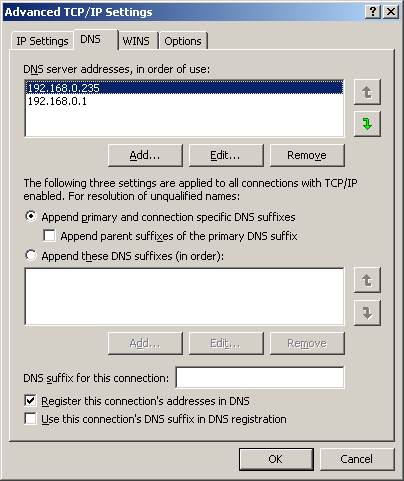
If clients are not registering in DNS, then first navigate to the DNS tab of the TCP/IP properties. Now make sure the check box: 'Register this connection's address in DNS', is ticked.
32) Dynamic and Static IP?
Dynamically assigned IP addresses are handled by a DHCP server. Static addresses are manually entered into your network properties on each individual PC. DHCP is much easier if you have a large number of client computers as it will assign these addresses automatically. You would have to walk to each computer and manually assign the IP address if statically assigning IP addresses.
Use DHCP whenever possible on client computers. Statically assign IP addresses to servers, printers and other devices that need to keep the same IP address always.
33) What is the log file is there in domain server. Brefly explain
34) How the DNS will resolve the in Tree domain?
35) If we are changing the DHCP server from one server to another what is the procedure we will follow?.
36) How will monitor the server from remotely ?.what are they ?.what we will monitor day to day basis ?.
37) If one Microsoft patches has been updated in the server. After restarting the server Blue screen appear. What we will do ?.
38) If the patches has been affected in your application. what will do ?.
39) After removing the patches also the same problem persists what we will do ?.
40) Tell me DHCP, FTP, Telnet, SMTP,HTTP, Port No.
41) What are tool is available u r using the remotely manage the server ?
42) Where we will update the Terminal server licenses.
43) What is the difference between Raid 0 and Raid 1 concept?
44) What is the difference between Raid 1 and Raid 5 concept?
45) If one hard disk failed in Raid 5. how it will restore .when we will replace new one.
46) What is difference between clustering and load balancing?
Windows 2000 Supported DNS Record Types
| Record Type | Common Name | Function |
| | | |
| A | Address Record | Maps FQDN to 32bit IPv4 address |
| AAAA | IPv6 address record | Maps FQDN to 128bit IPv6 address |
| CNAME | Canonical name or alias name | Maps a virtual domain name, alias, to a real domain name |
| MB | Mailbox name record | Maps a domain mail server name to the host name of the mail server |
| MG | Mail group record | Maps a domain mailing group to the mailbox resource records |
| MINFO | Mailbox info record | Specifices a mailbox for the person who maintains the mailbox |
| MR | Mailbox renamed record | Maps an old mailbox name to a new mailbox name for forwarding purposes |
| MX | Mail exchange record | Provides routing info to reach a given mailbox |
| NS | Name server record | Specifies that the name server listed has a zone starting with the owner name. Identify servers other than SOA server that contain zone information files. |
| PTR | Pointer resource record | Points to another DNS resource record, used for reverse lookup to point to A records |
| RP | Responsible person info record | Provides info about the server admin |
| RT | Route-through record | Provides routing info for hosts lacking a direct WAN adr |
| SOA | start of Authority resource record | Specify which server contains the zone file for a domain |
| SRV | Service locator record | Provides a way of locating multiple servers providing similar tcp/ip services |
| TXT | Text record | Maps a DNS name to a string of descriptive text |
How to Make a Category 5 / Cat 5E Patch Cable
Below, you will find the diagrams for 568A, 568B, and crossover patch cables. I suggest that you read on, past the diagrams for some very useful and important information.
As always, there continues to be Controversies over standards and practices regarding the use and making of patch cords, and UTP cable in general. Please see our section below titled: "Controversies and Caveats : Category 5, 5E, and Cat 6 Patch Cables". I hope that you will find it interesting and informative.
568-B Wiring
| Pair # | Wire | Pin # |
| 1-White/Blue | White/Blue | 5 |
| Blue/White | 4 |
| 2-Wht./Orange | White/Orange | 1 |
| Orange White | 2 |
| 3-White/Green | White/Green | 3 |
| Green/White | 6 |
| 4-White/Brown | White/Brown | 7 |
| Brown/White | 8 |
| <> |

568-A Wiring
| Pair # | Wire | Pin # |
| 1-White/Blue | White/Blue | 5 |
| Blue/White | 4 |
| 2-White/Green | White/Green | 1 |
| Green/White | 2 |
| 3-White/Orange | White/Orange | 3 |
| Orange/White | 6 |
| 4-White/Brown | White/Brown | 7 |
| Brown/White | 8 |
| <> |

Notes for wiring diagrams above:
1. For patch cables, 568-B wiring is by far, the most common method.
2. There is no difference in connectivity between 568B and 568A cables. Either wiring should work fine on any system*. (*see notes below)
3. For a straight through cable, wire both ends identical.
4. For a crossover cable, wire one end 568A and the other end 568B.
5. Do not confuse pair numbers with pin numbers. A pair number is used for reference only (eg: 10BaseT Ethernet uses pairs 2 & 3). The pin numbers indicate actual physical locations on the plug and jack.

Patch Cable Assembly Instructions
1. Skin off the cable jacket approximately 1" or slightly more.

2. Un-twist each pair, and straighten each wire between the fingers.
3. Place the wires in the order of one of the two diagrams shown above (568B or 568A). Bring all of the wires together, until they touch.
4. At this point, recheck the wiring sequence with the diagram.
5. Optional: Make a mark on the wires at 1/2" from the end of the cable jacket.

6. Hold the grouped (and sorted) wires together tightly, between the thumb, and the forefinger.
7. Cut all of the wires at a perfect 90 degree angle from the cable at 1/2" from the end of the cable jacket. This is a very critical step. If the wires are not cut straight, they may not all make contact. We suggest using a pair of scissors for this purpose.

7B. Conductors should be at a straight 90 degree angle, and be 1/2" long, prior to insertion into the connector.
8. Insert the wires into the connector (pins facing up).

9. Push moderately hard to assure that all of the wires have reached the end of the connector. Be sure that the cable jacket goes into the back of the connector by about 3/16".

9. Place the connector into a crimp tool, and squeeze hard so that the handle reaches it's full swing.

10. Repeat the process on the other end. For a straight through cable, use the same wiring. For a "crossover" cable, wire one end 568A, and the other end 568B.
11. Use a cable tester to test for proper continuity.
How to make a CAT5 Cable.
| A good CAT5 termination Provides a proper wire crimp, a wire insulation strain relief crimp and a cable strain relief crimp. Also important, is not unwinding the wires more than necessary, maintaining the twists as far as possible is important, but don't let it stop you from inserting the wires as far as possible. I've made a lot of these cables personally, and this is how I do it.
*Strip the cables Jacket back one full inch.
*Untwist the wires back to within 1/8" of the jacket.
*Arrange the wires in the order in which you want to crimp them, (ie. 568A, 568B, etc.) .
*Grasp the wires firmly, between your thumb and forefinger, flatten them, and even wiggle them a bit, to take out the curliness, (concentrate your efforts on the bottom 1/2") the wires must lay flat and together, aligned as close as possible.
*While holding the wires firmly, cut off the the wires 1/2" from the cables jacket (Cut the wires with some sharp wire strippers or even high quality scissors, avoid wire cutters that flatten the ends of the wires insulating material, this makes stuffing the wires very difficult.)
* Stuff the wires into the connector, making sure the wires stay lined up. * The wires should reach the end of the little tube they are in, if possible, or at least past the farthest point of that "little funny Gold Plated thingy"above it, which will terminate it.
* The jacket should go even with the end of the first indent, if possible, it's a strain relief for the cable.
*Insert it into the crimping tool, and Crimp it! All of this is very dependant on the tools you are using, the connectors you are using, and the cable you are using. A bad combination can be hell! |
How to wire a CAT5 (EIA 568-B*) Cable.
| connector #1 | connector #2 |
| 1 WHT/ORG
2 ORG/WHT
3 WHT/GRN
4 BLU/WHT
5 WHT/BLU
6 GRN/WHT
7 WHT/BRN
8 BRN/WHT | 1 WHT/ORG
2 ORG/WHT
3 WHT/GRN
4 BLU/WHT
5 WHT/BLU
6 GRN/WHT
7 WHT/BRN
8 BRN/WHT |
How to wire a CAT5 (EIA 568-A*) Cable.
| connector #1 | connector #2 |
| 1 WHT/GRN
2 GRN/WHT
3 WHT/ORG
4 BLU/WHT
5 WHT/BLU
6 ORG/WHT
7 WHT/BRN
8 BRN/WHT | 1 WHT/GRN
2 GRN/WHT
3 WHT/ORG
4 BLU/WHT
5 WHT/BLU
6 ORG/WHT
7 WHT/BRN
8 BRN/WHT |
| *The only real difference between 568A and 568B is that
the White/Orange-Orange/White and White/Green-Green/White pairs are swapped. |
Crimp strain relief:
Cable jacket should be inserted past the strain relief crimp, (see picture below).

How to wire a "Crossover" Cable.
(EIA 568-B*)
| connector #1 | connector #2 |
| 1 WHT/ORG
2 ORG/WHT
3 WHT/GRN
4 BLU/WHT
5 WHT/BLU
6 GRN/WHT
7 WHT/BRN
8 BRN/WHT | 1 WHT/GRN
2 GRN/WHT
3 WHT/ORG
4 BLU/WHT
5 WHT/BLU
6 ORG/WHT
7 BRN/WHT
8 WHT/BRN |
USOC crossover cables are like this:
| 1 WHT/BRN
2 WHT/GRN
3 WHT/ORG
4 WHT/BLU
5 BLU/WHT
6 ORG/WHT
7 GRN/WHT
8 BRN/WHT | 8 WHT/BRN
7 WHT/GRN
6 WHT/ORG
5 WHT/BLU
4 BLU/WHT
3 ORG/WHT
2 GRN/WHT
1 BRN/WHT |
color abbreviations:
WHT-WHITE
BRN-BROWN
ORG-ORANGE
GRN-GREEN
BLU-BLUE
The first color listed in the color pair is the dominant color of the wire.
In other words, WHT/ORG is a white wire with orange stripes.
Troubleshooting Tips for DNS in Windows Server 2003
During my career as a biologist when we went on field trips, I had a student who always claimed that he had found a rare bird. Inevitably it turned out to be the common or garden variety. My point is this, when it comes to troubleshooting DNS, begin with the basics, investigate the most obvious solution, check the common trouble spots.
 Beware of making the problem worse by altering settings that are correct. Change one factor at a time, and write down what you configured.
Topics for Troubleshooting DNS
Can you ping the target machine?
a) By IP address. Ping 10.1.0.100
b) By Hostname. Ping BigServer
c) By fully qualified domain name. Ping BigServer.guybay.com
Examine the replies for clues, for example is the reply BigServer or BigServer.domain.com.
Depending on the results from Ping, check the Default Gateway and Subnet Mask.
Collect information about default gateways and DNS servers with IPCONFIG's switches, particularly the /all.
What you are particularly interested in is the DNS Server's IP address. Should that field be empty or incorrect then adjust the IP address at the Network Icon, TCP/IP properties.
Remember that Ipconfig has 3 DNS specific switches. On more than one occasion /flushdns has saved me tearing my hair out. What happens is that you may have solved the problem, but the a dirty cache prevents confirmation. Ipconfig /registerdns can save a reboot, while /displaydns may give you extra information on what name resolution the client has achieved.


At the DNS console, Click on View (Menu) and make sure that Advanced is ticked. This is rather like 'Show All files'.
Precisely what to look for in the Snap-in, depends on the problem. If you are checking basic connectivity, then check you have a Host (A) record for the machine you are trying to contact. However, I would follow up PING with a check of the Monitor Tab on the DNS Server icon.
For basic Active Directory / DNS configuration check that the _msdcs records were created by DCPROMO. If not try restarting the Netlogon service.
If you have a more difficult problem, for example zone replication, then click on the Server Icon, Properties. (In the diagram Alan is the name of the server.)
One trap is to investigate the DNS server icon when you should be looking at the Forward Lookup Zone, domain name. (Also vica versa, you look at the domain properties instead of the DNS server icon.)
About half the solution to DNS problems require a restart of the DNS service, fortunately Microsoft supply a Restart option on the 'All Tasks' menu.
My conclusion for troubleshooting with NSLookup is avoid it. Instead, where ever possible, use the above DNS snap-in. At first I was in awe of NSLookup, then I mastered it, then I realized that it did not give me any more information than the DNS snap-in.
So, the killer use of NSLookup is if you do not have the DNS snap-in, for example you are troubleshooting from an XP machine.
The trap with NSLookup is that you forget to configure the PTR records, without the corresponding Reverse Lookup Zone, NSLookup will fail.
Instead of NSLookup I would use DNSLint
DNSLint troubleshooting Utility for DNS
I am always on the lookout for a good new Microsoft utility. DNSLint is my current favourite.
For basic connectivity errors you cannot beat Ping and Ipconfig. But what if they don't solve the problem? The answer is try DNSLint.
Topics for DNSLint
Firewall problems plague me, so my killer feature of DNSLint is that it displays port numbers e.g. TCP 53. As a bonus it displays the information as HTML. Perhaps this is the start of a new trend by Microsoft to replace the DOS output of command line utilities is permanent files. (Who remembers to pipe the output of Ipconfig to a text file?)
The first question that I ask about any utility is where do you find it? In the case of DNSLint the answer is: Support Cabinet on Windows Server 2003 CD.
By accident if discovered that to get the most out of DNSLint I needed the a reverse lookup zone. I say by accident as I normally set up a reverse lookup zone as best practice. But I went to a customers site and got egg on my face when DNSLint would not display correctly. I blamed the customer - but only under my breath!
Does DNSLint work with Windows 2000? Yes just provided you have access to the Windows Server 2003 CD.
Getting started with DNSLint - /d /s
As with many of Windows 2003's command line utilities there are whole bank of switches. To get started try DNSLint /d yourdom.com. However there is a trap with /d, if you are NOT connected to the internet. You must add another switch: /s server IP. Technically /s avoids the timeout when DNSLint tries to contact InterNIC whois
Example go to the command line type: DNSLint /d yourdom.net /s 10.1.0.50
The second and subsequent times you run DNSLint, append the /y switch, meaning overwrite the dnslint.htm file. Even better use the /r and specify your own filename. For example, /r serverx.htm, or /t if you prefer a text file.
Troubleshooting Email with DNSLint - /c
Another feature of DNSLint is that it displays MX records which will assist in tracking down email delivery problems. For further email testing, for example SMTP or POP3, try the /c switch. It is possible this only works if the ports are the defaults, 25 SMTP and 110 POP.
To be clear if you just want to test SMTP the command would be:
DNSLint /d guybay.com /c smtp
Checking Active Directory - /ad
To tell the truth I was disappointed with this /ad switch. To be fair it is only designed to troubleshoot forest replication. However I was hoping for a list of _gc or _dc records. I even tried the /v (Verbose) mode - but no dice, just the bare bones of the Glue record for Active Directory Forest replication
DNS Sample report
DNSLint Report
System Date: Wed Jan 26 09:47:25 2005
Command run:
dnslint /d computerperformance.co.uk /s 10.1.0.20
Domain name tested:
computerperformance.co.uk
The following 4 DNS servers were identified as authoritative for the domain:
DNS server: dns1.cp.computerperformance.co.uk
IP Address: 10.1.0.20
Responding to queries: YES
UDP port 53 responding to queries: YES
TCP port 53 responding to queries: Not tested
Answering authoritatively for domain: YES
SOA record data from server:
Authoritative name server: dns.cp.computerperformance.co.uk
Hostmaster: msnhst.computerperformance.co.uk
Zone serial number: 54234
Zone expires in: 83.33 day(s)
Refresh period: 900 seconds
Retry delay: 600 seconds
Default (minimum) TTL: 7200 seconds
Additional authoritative (NS) records from server:
dns1.cp.computerperformance.co.uk 10.1.0.20
dns1.dc.computerperformance.co.uk 10.68.128.151
dns1.sj.computerperformance.co.uk 10.1.97.11
dns1.uk.computerperformance.co.uk 10.1.232.37
Host (A) records for domain from server:
10.1.197.100
10.1.197.102
10.1.230.218
10.1.230.219
10.1.230.220
Mail Exchange (MX) records from server (preference/name/IP address):
10 maila.computerperformance.co.uk 10.107.3.124
10 mailb.computerperformance.co.uk 10.107.3.122
10 mailc.computerperformance.co.uk 10.107.3.126
-----------------------------------------------------------------------
DNS server: dns1.uk.computerperformance.co.uk
IP Address: 10.1.232.37
Responding to queries: YES
Answering authoritatively for domain: YES
SOA record data from server:
Authoritative name server: dns.cp.computerperformance.co.uk
Hostmaster: msnhst.computerperformance.co.uk
Zone serial number: 54234
Zone expires in: 83.33 day(s)
Refresh period: 900 seconds
Retry delay: 600 seconds
Default (minimum) TTL: 7200 seconds
Additional authoritative (NS) records from server:
dns1.cp.computerperformance.co.uk 10.1.0.20
dns1.dc.computerperformance.co.uk 10.68.128.151
dns1.sj.computerperformance.co.uk 10.1.97.11
dns1.uk.computerperformance.co.uk 10.1.232.37
Host (A) records for domain from server:
10.1.230.219
10.1.230.220
10.1.197.100
10.1.197.102
10.1.230.218
Mail Exchange (MX) records from server (preference/name/IP address):
10 maila.computerperformance.co.uk 10.107.3.124
10 mailb.computerperformance.co.uk 10.107.3.122
10 mailc.computerperformance.co.uk 10.107.3.126
----------------------------------------------------------------------
DNS server: dns1.dc.computerperformance.co.uk
IP Address: 10.68.128.151
Responding to queries: YES
Answering authoritatively for domain: YES
SOA record data from server:
Authoritative name server: dns.cp.computerperformance.co.uk
Hostmaster: msnhst.computerperformance.co.uk
Zone serial number: 54234
Zone expires in: 83.33 day(s)
Refresh period: 900 seconds
Retry delay: 600 seconds
Default (minimum) TTL: 7200 seconds
Additional authoritative (NS) records from server:
dns1.cp.computerperformance.co.uk 10.1.0.20
dns1.dc.computerperformance.co.uk 10.68.128.151
dns1.sj.computerperformance.co.uk 10.1.97.11
dns1.uk.computerperformance.co.uk 10.1.232.37
Host (A) records for domain from server:
10.1.230.218
10.1.230.219
10.1.230.220
10.1.197.100
10.1.197.102
Mail Exchange (MX) records from server (preference/name/IP address):
10 maila.computerperformance.co.uk 10.107.3.124
10 mailb.computerperformance.co.uk 10.107.3.122
10 mailc.computerperformance.co.uk 10.107.3.126
----------------------------------------------------------------------
DNS server: dns1.sj.computerperformance.co.uk
IP Address: 10.1.97.11
Responding to queries: YES
Answering authoritatively for domain: YES
SOA record data from server:
Authoritative name server: dns.cp.computerperformance.co.uk
Hostmaster: msnhst.computerperformance.co.uk
Zone serial number: 54234
Zone expires in: 83.33 day(s)
Refresh period: 900 seconds
Retry delay: 600 seconds
Default (minimum) TTL: 7200 seconds
Additional authoritative (NS) records from server:
dns1.cp.computerperformance.co.uk 10.1.0.20
dns1.dc.computerperformance.co.uk 10.68.128.151
dns1.sj.computerperformance.co.uk 10.1.97.11
dns1.uk.computerperformance.co.uk 10.1.232.37
Host (A) records for domain from server:
10.1.197.100
10.1.197.102
10.1.230.218
Mail Exchange (MX) records from server (preference/name/IP address):
10 maila.computerperformance.co.uk 10.107.3.124
10 mailb.computerperformance.co.uk 10.107.3.122
10 mailc.computerperformance.co.uk 10.107.3.126
-----------------------------------------------------------------------
Legend: warning, error
DNSLint developed by Tim Rains
Reverting to hosts files may seem like taking a step backwards into the dark ages, but many is the time that this trust old technology has solved a problem.
The beauty of the hosts file is its simplicity and the fact that the client operating system reads the hosts file BEFORE it queries DNS. Be sure that you are editing the hosts file in the %systemroot%\system32\drivers\etc. (Not in the \i386 or dllcache folder)
Once you have opened the hosts file with notepad, experiment with hostnames and IP addresses for the server that you wish to connect. Once you have added the host entry try once more to contact with Ping.
Example of Hosts file entries
10.10.0.1 BigServer
or
10.10.0.1 BigServer.guybay.com
In truth the Event Viewer should be the first place to look for clues, not the last! Mastering the Event Viewer is an art in itself. The point to remember is that DNS has its own Log. By all means check the system log or even the application log, but do investigate the DNS log.
What you are looking for depends on the problem area. But here are a few categories to check: Domain Name Problems, Resource Record, Database Load and there really is a DNS Sanity Check!
Advanced DNS Troubleshooting for Windows Server 2003
So you need to solve a DNS problem. The situation is that you have checked the basics and you still suspect that DNS is not working properly. Where next? That depends on your situation. Here are my favourite DNS tips.
Topics for Troubleshooting DNS
- Will ipconfig /flushdns magically cure the problem? Alternatively, restart the DNS service.
- Is there one DNS client affected or many clients.
- Can the very DNS server itself resolve addresses and queries?
- Beware that the cause is nothing to do with DNS. I once ripped out a perfectly good DNS configuration because I overlooked testing the physical network.
- A variation of this external cause theme is that a firewall could be blocking DNS ports 53.
- Do you have correct IP address in the resource records for the very server itself.
- Is the server Authoritative for the domain that you are querying?
- Remember to add PTR records in the reverse lookup zone.
- For Email delivery problems, are the MX records correct?
- Is the problem related to the internet? How are the Root Hints configured?
- If it's a Web browsing problem, which sites are available.
- Delegation. If you have subzones has delegation given the correct permissions?
The scenario: when you attempt to cure a DNS problem by changing a setting, nothing seems to happen. At least nothing happens until you either restart the DNS service or close then re-open the DNS Snap-in.
So remember to make liberal use of Refresh and also right click the server icon, All Tasks, Restart. Note there is also a Clear Cache setting, which is the equivalent of IPCONFIG /flushdns.
DNS Check list
DNS Server, properties Monitor (Tab). Test Simple and Recursive Queries. If the recursive query fails, check the Root Hints.
Match Host (A) record with PTR in Reverse Lookup Zone; failure could cause problems with internet resolution.
Are there any non-standard characters in any of your names? Be wary of underscores, and hostnames with only numbers.
Could unneeded CName records be masking or confusing Host (A) records? FTP and WWW CName aliases are fine, but for all other cases use CName sparingly.
MX records. It is good practice to create MX records to point to your own server.
Lame Delegations, check that all NS records point to servers that exist and are authoritative for that domain.
Replication problems
Increment the Serial Number to force replication. Navigate to the Forward Lookup Zone (not server icon), Domain name, Properties, SOA (Tab) serial number, Increment (Button).
If you are using Active Directory integrated zones, then you could force an instant replication by going to Active Directory Sites and Services, drill down through Default-first-name-site, servers, NTDS Settings, right click and Replicate Now.
At the Domain properties, Check Zone transfer (Tab). Make sure the setting Allows Transfer.
Registering Records in DNS
Check DHCP. First, a basic check that your Type 006 Option is set to the correct DNS server. Next find the DNS (tab) in DHCP, investigate Dynamic DNS Settings.
Check client TCP/IP properties, Advanced, DNS, Register this connection's address in DNS. This is the equivalent of IPCONFIG /registerdns
Problems with Active Directory.
Check that the _msdcs folder exists and is populated with lots of records. If not try restarting the Netlogon services. While I am not a great fan of rebooting in Windows 2003, on this occasion I would try a reboot to see if that causes the _msdcs to be populated.
Ask: 'what has changed recently?'
What were the last settings to change? Has any hardware changed? If so reverse engines, revert to how it was and see if that cures the problem. Pattern recognition is a vital troubleshooting skill. Look for patterns, spot what is out of the ordinary, such as resource records that is different, or a spelling misNake in a forwarder name.
The Event Log
Microsoft have provided a clue by situating a copy of the DNS Event log right underneath the server icon. So take advantage of this invitation to search for error messages and lookup the Event ID in TechNet. It may worth a quick look in the system event log, perhaps your DNS problem is a symptom of a bigger problem and not the underlying cause.
Can you reproduce the problem?
Can make the fault reoccur? If so write down any error messages and go to TechNet and experiment with different combinations of key words from the event viewer or message box.
Phone a friend!
Ask for help. Which expert do you know, what is there email address, or better still their mobile number. When you are stuck, it's time to call in favour.
I have noticed that people approach problem solving in two distinct ways. I'll call the first method the 'techie' approach and the second the Henry Ford method. At this point I assume that you have been using the 'techie' approach and sadly it has not worked for your problem; if so, then give the Henry Ford method a chance.
Legend has it Henry Ford knew little about car manufacturing but had a row of buttons, blue for an engine expert, red for electrical etc. So, now is the time to press your buttons. Contact the most likely people, explain the problem and appeal to their problem solving skills.
Command Prompt
- IPCONFIG /flushdns /registerdns /displaydns
- PING
- TraceRt (Trace route)
- Route Print
- NSLookup
- DNSLint
- DNSCmd
- NetDiag and DCDiag
NetDiag provides a master class in testing Network Availability. When you run NetDiag from the command line it carries out a battery of tests, which test your servers' ability to operate successfully. As usual, my goal in this NetDiag tutorial is to show you how to get testing your Lan or Wan network.
Even if there is no problem with your Active Directory, it is still worth running NetDiag to learn about a healthy operating system, for example, NetDiag checks the NIC bindings. Get a free copy of Netdiag at the end of this page.
Tutorial Topics for NetDiag
- Installing Exchange and you wish to check that you can connect to other servers.
- Checking VPN network tunnels on the WAN.
- DNS problems. Computers cannot 'see' their domain controller on the LAN.
- A quick check on hotfixes.
- Check the Network Card Bindings from the command prompt.
- You are having problems with IPSEC.
- Winsock corruption, wrong version incompatibilities.
- NetDiag checks that Domain Controllers are all able to 'speak' LDAP.
Installing NetDiag
NetDiag magically appears after you install the Support Tools from the Windows Server 2003 CD. Once NetDiag.exe (and Support Tools) is the path then you can run it from any command prompt.
/v If you need the full report on your network availability, then append this verbose switch to the command. Unlike the /v of other utilities, NetDiag /v really does produce chapter and verse on your network cards and their binding.
/Debug This debug switch was disappointing in that it did not produce any more details than those supplied by the /v. Perhaps I would have received extra information if my Windows Server 2003 really had a network connectivity problem.
/q When you just need to know if there are any errors, this is the switch for troubleshooting. The /q is the antithesis of the /v and /debug.
/test: Unlike DCDiag, NetDiag's test switched worked perfectly. What is more the command:
netdiag /test produced the following list of possible tests:
| NetDiag Tests Ndis - Netcard queries Test
IpConfig - IP config Test
Member - Domain membership Test
NetBTTransports - NetBT transports Test
Autonet - Autonet address Test
IpLoopBk - IP loopback ping Test
DefGw - Default gateway Test
NbtNm - NetBT name Test
WINS - WINS service Test
Winsock - Winsock Test
DNS - DNS Test | DsGetDc - DC discovery Test
DcList - DC list Test
Trust - Trust relationship Test
Kerberos - Kerberos Test
Ldap - LDAP Test
Route - Routing table Test
Netstat - Netstat information Test
Bindings - Bindings Test
WAN - WAN configuration Test
Modem - Modem diagnostics Test |
DNS Server Icon
- Monitoring (Tab)
- Root Hints (Tab) - Do you need them?
- Event Viewer - DNS log
- Debugging Logging (Tab)
Introduction to Troubleshooting Exchange 2003 Server
This section covers troubleshooting Exchange 2003 server. My advice includes how to repair corrupt mailstores, how to track faulty connections and NDRs. (Backup and Restoring mailboxes are covered in the disaster recovery section).
I begin by explaining how to get into state before you attempt a solution; and I end with examining key tools such as ADSI Edit.
Topics for Troubleshooting Exchange 2003
You have a problem? I can help with a solution. You may not be expecting my first piece of advice, no computer text books mention it, but Guy says: ' Start by getting into state '. What I mean is get into the right frame of mind. Say to yourself, 'I Can do it. There must be a solution'. Avoid the dangerous whirlpool of this thinking, my problem is impossible, there is no way out, nothing will work. Often physically doing nothing, but mentally getting into state, prevents you from making the problem worse. How often have you tried to fix a machine but ended up breaking things that were actually working properly?
Start by leaving the problem for just a few minutes; make yourself a pot of tea, or a cup of coffee, (nothing stronger to drink at this stage!). When you return to the computer, the first thing to do is get a piece of paper and write down the problem, draw a diagram if that helps. Often just walking away for only a few minutes clears my head and I am now ready to solve that problem. O.K. so now you are in problem solving state, time for real practical advice.
My mantra is getting you started, reminding you of the best places to check. Your role is that of a detective looking for clues. What is the significance of a red dot here, an error message there. Once you have assembled the clues it's time to develop a theory as to the underlying cause of the problem. Finally, draw up a list of possible solutions.
- Open the Event Viewer and check the Application Log.
- Can you send yourself an email? If necessary, use OWA: http: //server/exchange.
- Ensure that all the necessary services are started, remember to scroll down to 'M' for Microsoft Exchange, now you can see services like MSExchangeIS.
- What happens if you go to the command prompt and type:
telnet servername 25? Do you get a Hello response? - Are there any clues in the Exchange System Manager, Servers, Queues?
If Event viewer reports MSExchangeIS errors, then the following utilities will help to resolve the problem. In an ideal world, you need experience of Eseutil and Isinteg utilities BEFORE disaster strikes. So practice some of the safer commands, for example eseutil /d or isinteg -s servername -tests alltests.
- Eseutil - Powerful tool for repairing Exchange store databases
- IsInteg - Fixing corrupt tables in the store.
Classic places to collect clues. Find out why the email did not get through.
Troubleshooting Connections - Exchange Logs
If the email is not getting through, examine Exchange's logs. The biggest problem is finding the best log for your particular situation.
If you feel that your server ought to be running faster, then take the time to create a counter log. Start with the big 4 objects, memory, processor, disk and network, then progress to Exchange specific counters such as MSexchangeIS (Information Store).
What ever the problem, always begin by checking the event viewer. I will be amazed if there is not a clue as to what's wrong with your Exchange Server in either the Application or System logs.
- ExDeploy - Exchange 2003 CD. Will guide you through any installation, or migration.
- ExMerge - Specialist tool for extracting data from one mailboxes and importing it into another mailbox.
How DHCP Works in an Ethernet/IP LAN environment and assumes the client is obtaining a fresh lease without foreknowledge of the DHCP server's IP address. Note that this is highly simplified.
- A client boots and initializes its network hardware
- The client sends out a DHCPDISCOVER message formatted as follows:
- The source MAC is the client's MAC
- The destination MAC is all 1's indicating a hardware-layer broadcast (FFFFFF-FFFFFF)
- The message type is set to DHCPDISCOVER
- The server hears the DHCPDISCOVER request and responds
- The source MAC is the server's MAC
- The destination MAC is the client's MAC
- The message type is DHCPOFFER containing:
- Server-provided IP address from pool of free addresses (the server should but is not required to check for address conflicts before offering the IP address).
- List of DHCP configuration parameters
- Client responds with DHCPREQUEST message and does one or more of the following:
- requests values for the server-offered parameters from a single server (rejecting all offers from other servers)
- confirm the correctness of the previously allocated IP address (after the client had rebooted or lost connection to the network)
- requests extension of the lease on the specific address already supplied.
- The server responds with
- a DHCPACKnowledge to confirm the server-offered options and IP previously confirmed by the client -
- or- - a DHCPNOACKnowledge to reject the server-offered options.
- or - - a DHCPDECLINE message to indicate to the server the address is in use.
- The client retains the information throughout the period of its lease.
- The client sends a DHCPRELEASE message to release its IP address at the DHCP server when it is leaving the network.
DHCP Lease Process
DHCP leases are used to reduce DHCP network traffic by giving clients specific addresses for set periods of time. The DHCP process stages can be remembered using the ROSA acronym:
- Request - A broadcast is sent by the client with the client MAC address. This is a DHCP discover message with source IP address of 0.0.0.0 and destination address of 255.255.255.255. The client tries to get its last address. If it is not available, the DHCP server will send a NACK signal. The client state is initialization during the request stage.
- Offer - A DHCP offer message is sent from the DHCP server with some or all the optional information as listed above. Information sent includes the IP address of the DHCP server that sent the accepted offer. All offered IP addresses are marked unavailable by the DHCP server when the DHCP server offers them until they are rejected. The client is in the selecting state during this offer stage.
- Selection (or acceptance) - The first offer received by the client is accepted. The client broadcasts its selected choice using a DHCP request message which includes the IP address of the DNS server that sent the accepted offer. The client is in the requesting state during this selection stage.
- Acknowledgement - The server acknowledges with a DHCP acknowledge indicating the client can use the address or it will send a DHCP Nak instructing the client that the address became unavailable. Other DHCP servers retract their offers and mark the offered address as available and the accepted address as unavailable. Any offered IP addresses not selected are freed to be used again. The client state is the binding state during this acknowledgement stage.
DHCP Lease Renewal
After 50% of the lease time has passed, the client will attempt to renew the lease with the original DHCP server that it obtained the lease from using a DHCPREQUEST message. Any time the client boots and the lease is 50% or more passed, the client will attempt to renew the lease. At 87.5% (7/8ths) of the lease completion, the client will attempt to contact any DHCP server for a new lease. If the lease expires, the client will send a request as in the initial boot when the client had no IP address. If this fails, the client TCP/IP stack will cease functioning.
Additional messages include a DHCP decline message which is sent by the client if it decides the information from the server is not appropriate. A DHCP release message is used by the client to indicate to the server that the IP address is now released and available for use by other clients. The client is in the renewing state when the lease is half expired.
WINS
The purpose of WINS is to allow a NetBIOS name to be converted to an IP address. Therefore computers using WINS must be using NBT (NetBIOS over TCP/IP). WINS was originally put in place to compensate for a shortcoming of NetBEUI which is the fact that it is not routable. Therefore on large Networks IP is used to transport NetBIOS and rather than using broadcasts, information is sent to the WINS server.
WINS converts Windows computer names to IP addresses but does not do name lookups based on IP addresses. The use of Windows Explorer or NET commands invokes the NetBIOS interface. NetBIOS names, if repeated on another domain that is on the network, may cause a problem since there is no way to distinguish NetBIOS names between two domains. Each computer, when booted, sends a name registration broadcast. If there is no response, the computer will use the name it registered. A NetBIOS broadcast releases the computer name when the computer is shutdown gracefully.
WINS reduces this broadcast traffic when using NBT. The registration and release is sent to the WINS server rather than being broadcast. The clients have the IP address of the WINS server and they are configured to use WINS before using NetBIOS broadcasts. A backup WINS server may be available on the network for fault tolerance.
NetBIOS Names
On the WINS server, there is a NetBIOS name for each service a NetBIOS computer offers. This uses the 16th hidden character of the NetBIOS names. Up to 25 records of groups, domain browsers, and multihomed computers may be registered. The characters and their meanings are:
- 00 - Workstation service (Domain name) or (Workgroup name) or (Computer name)
- 03 - Messenger service (Computer name) or (User name)
- 06 - RAS server service (Computer name)
- 1B - Primary domain controller (Domain name)
- 1C - Domain controller or PDC or BDC (Domain name)
- 1D - Master browser (Domain name)
- 1E - Only is on servers, indicates the computer would become a browser if requested.. (Domain name) or (Workgroup name)
- 1F - NetDDE service (Computer name)
- 20 - Server service (Computer name)
- 21 - RAS client (Computer name)
- BE - Network Monitoring Agent service (Computer name)
- BF - Network monitor utility service (Computer name)
WINS Operation
When a NetBIOS broadcast is to go out, a computer sends over TCP/IP to a WINS server to resolve NetBIOS names. WINS dynamically builds its database. When a client uses WINS it announces to the WINS server over TCP/IP rather than broadcasting to all computers. WINS Message Modes:
- Client Name Registration - When a client service is started, the appropriate NetBIOS name for that service, for all NetBIOS processes (Using the hidden 16th byte) is sent to the WINS server. If the registration fails, the client retries every ten minutes. If the primary WINS server fails to respond, the request is sent to the secondary WINS server after three tries. If no WINS server responds, B-node broadcasts are used by the client. When contacted, the WINS server returns a time to live (TTL) field containing the length of time the client may use that name. If a duplicate name is received, the server sends a wait for acknowledgement (WACK) to the registering client. Then a challenge is sent by the server to the registered client. If the current owner responds correctly, the new client request is rejected.
- Client Lease Renewal - When the name lease is at 50%, the client sends a name renewal request to the WINS server with its name and IP address. When the lease is 7/8 up, the client will try again then attempt a lease with the secondary WINS server. After 4 attempts with the secondary WINS server, it attempts lease renewal with the primary WINS server again.
- Client Name Release - The client sends a name release message with its name and IP address. The server responds with a positive release message. If no confirmation is received by the client a NetBIOS broadcast release is sent up to three times.
- Server Name Query and Name Resolution response - With WINS server on the network, resolution is done using H-node on UDP port 137 (NetBIOS Name Service). Name query order:
- Local cache
- WINS server (primary then secondary, two times).
- Broadcast
- Lmhosts file
- Hosts file
- DNS
 Install the Replication Monitor from the Support folder of the Server CD